
 openelab.de
 openelab.com





M5CoreS3 is an ESP32-S3-based controller from the M5Stack Core series. To develop for it with Arduino, you need to install Arduino IDE, add the M5Stack board package, install the required libraries, select the correct board and port, and then upload a test sketch.
Prerequisites
Prepare an M5CoreS3, a USB-C data cable, a computer, and Arduino IDE 2.x. Make sure the USB-C cable supports data transfer, not only charging. If Arduino IDE cannot detect a port later, trying a different cable is often the fastest fix.
If you still need the hardware, you can get the M5Stack CoreS3 ESP32S3 from OpenELAB.
1. Install Arduino IDE
Open the Arduino Software download page and download the installer for your operating system. Choose the Windows package for Windows, the correct Apple Silicon or Intel package for macOS, or the Linux package for Linux.
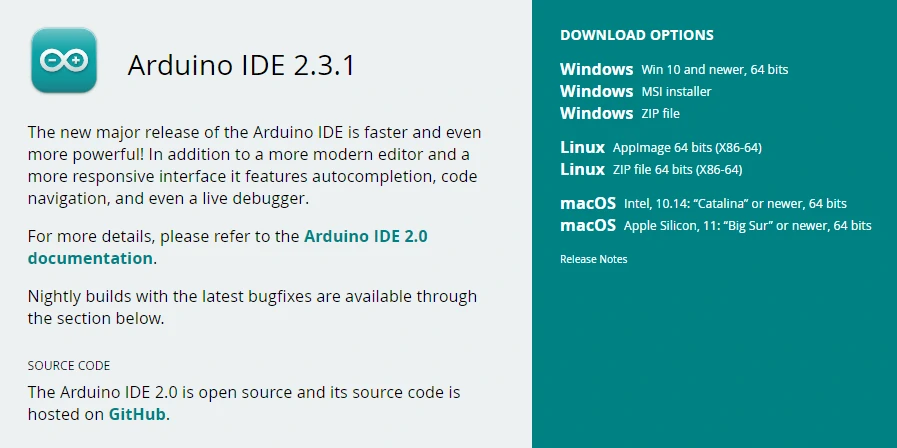
After installation, launch Arduino IDE. The steps below use the Arduino IDE 2.x interface. You can also refer to M5Stack's official Setting Up the Arduino Development Environment page.
2. Add the M5Stack Board Manager URL
In Arduino IDE, open File -> Preferences. This is where you add third-party board package URLs.
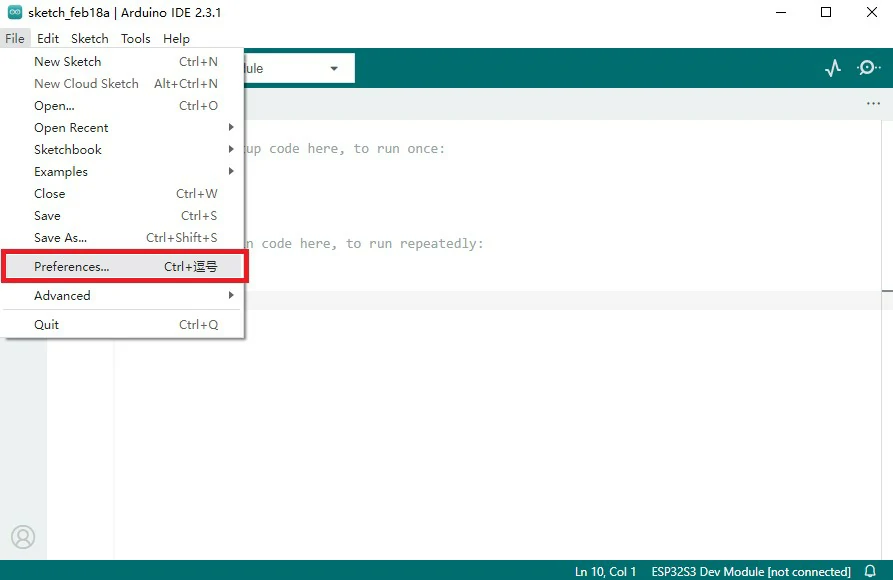
Paste the M5Stack board package URL into Additional Board Manager URLs, then save the settings:
https://static-cdn.m5stack.com/resource/arduino/package_m5stack_index.json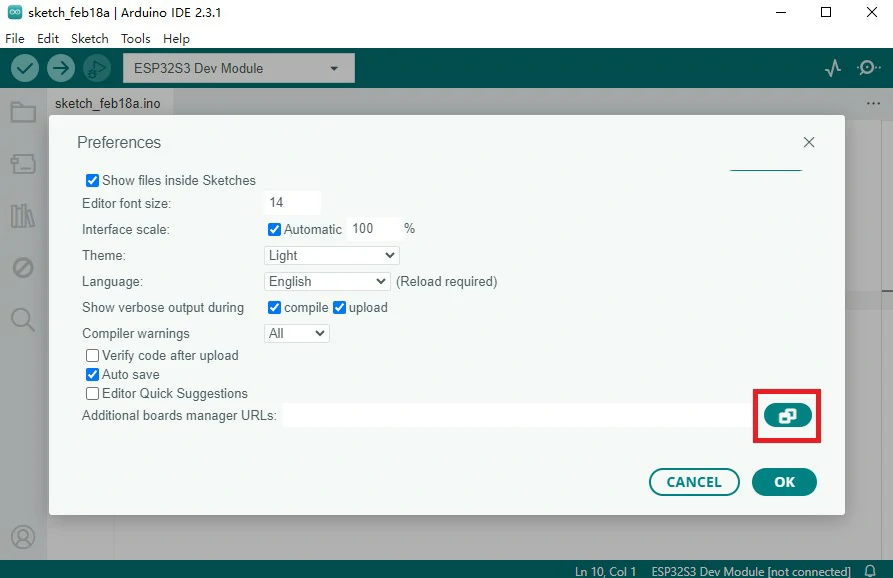
For the official board package instructions, see M5Stack's Arduino Board Management tutorial.
3. Install the M5Stack Board Package
Return to the Arduino IDE main window. Open Board Manager from the left sidebar, search for M5Stack, and click Install on the M5Stack board package. Arduino IDE will download the board definitions and toolchains required for compilation.
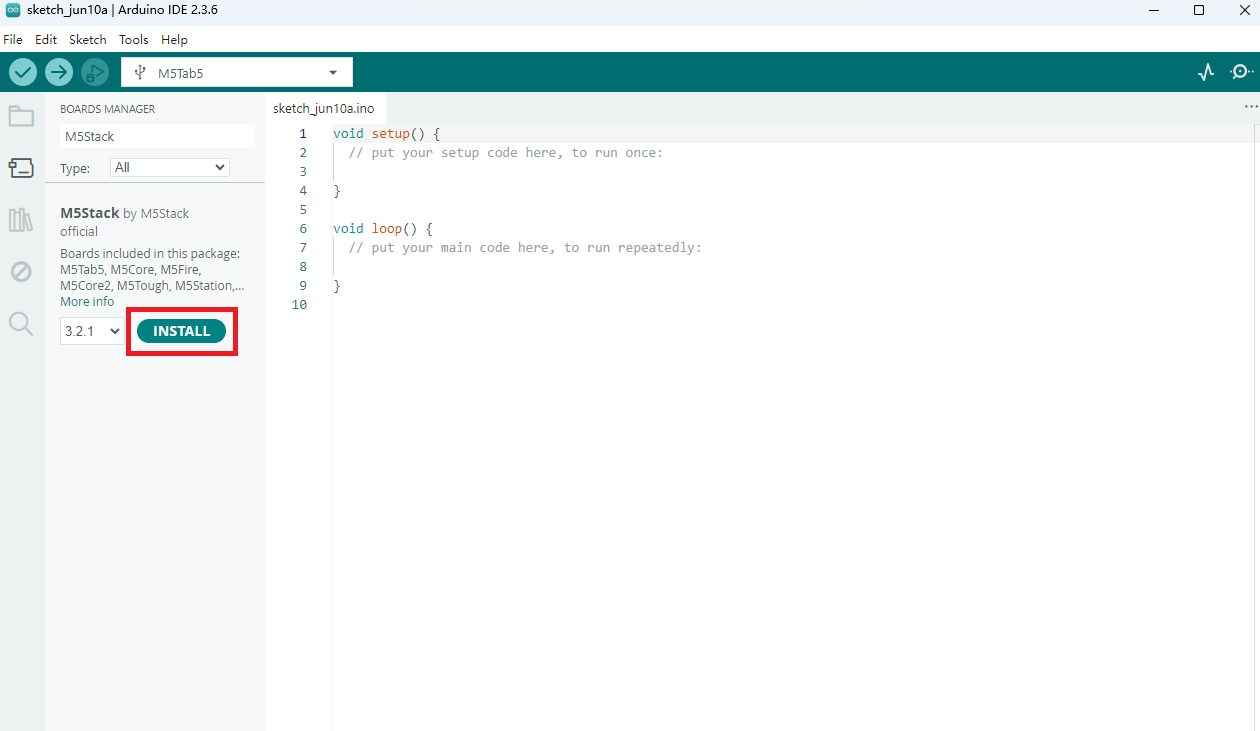
After this step, Arduino IDE can recognize and compile sketches for M5Stack boards.
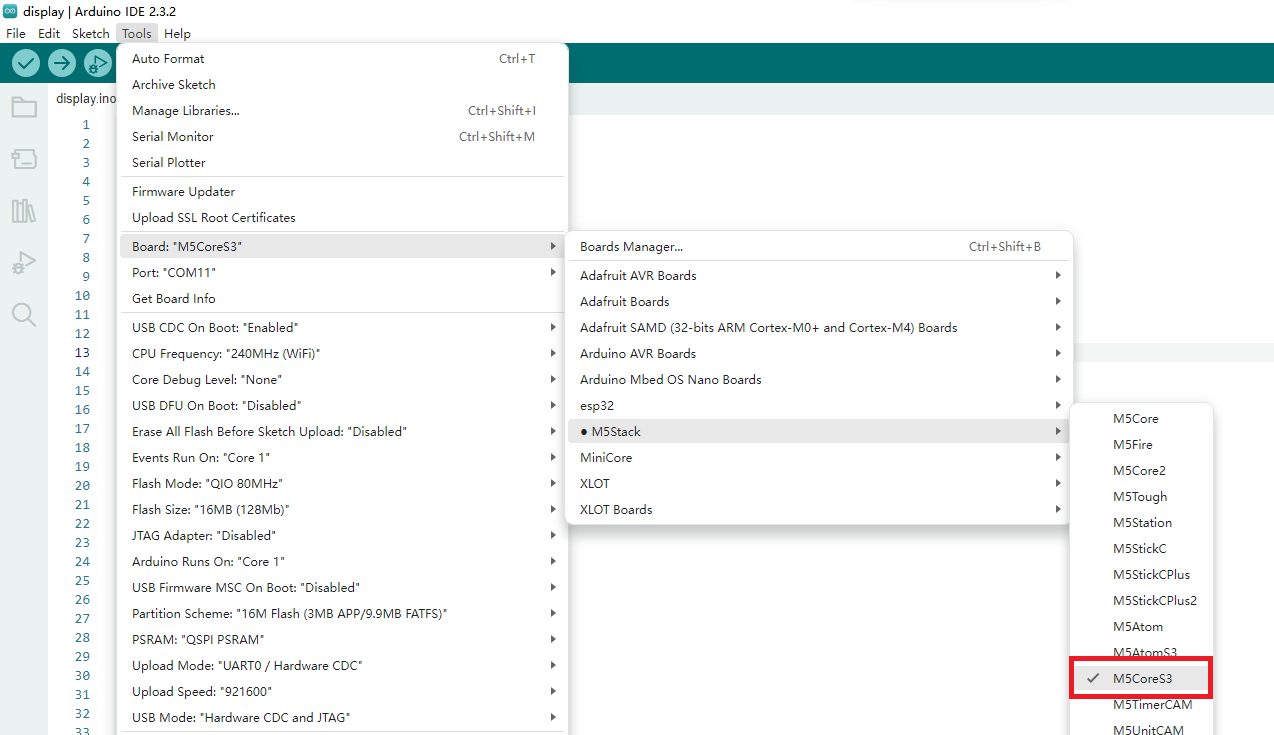
4. Select M5CoreS3 as the Target Board
Use the board selector at the top of Arduino IDE, or go to Tools -> Board -> M5Stack, and select M5CoreS3. If you do not see the board in the list, check that the M5Stack board package installed correctly and update it if needed.
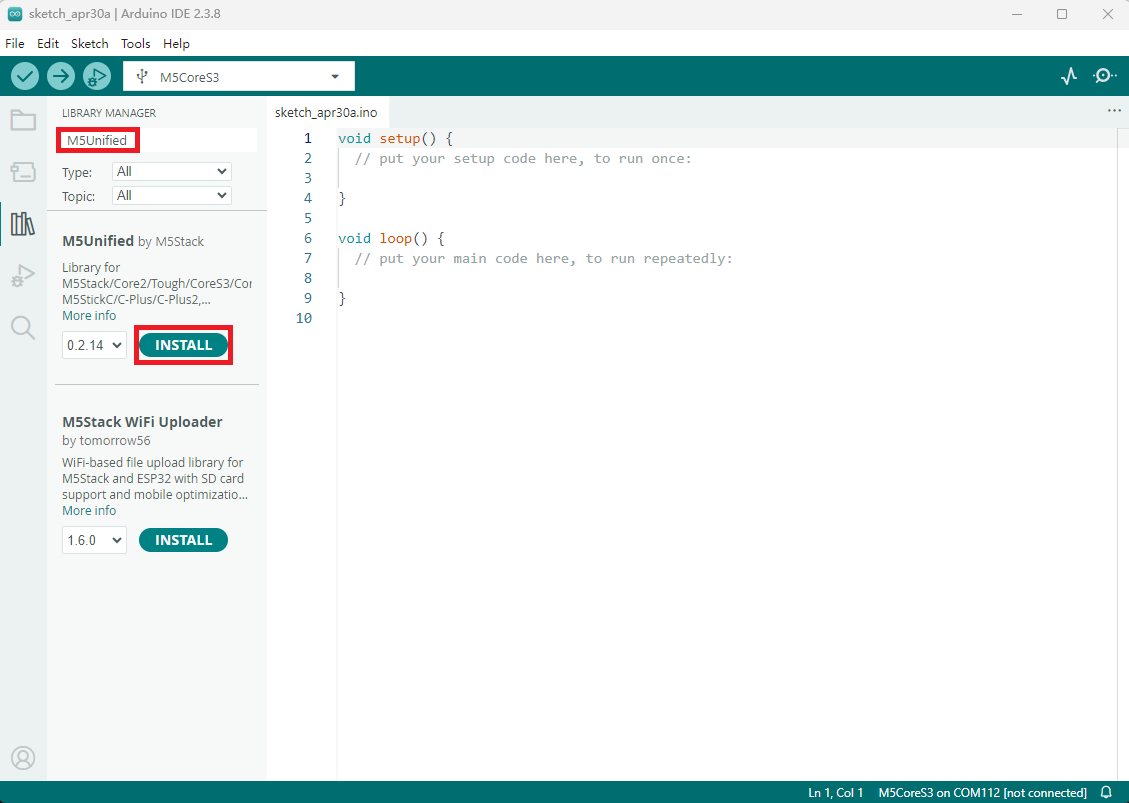
5. Install M5Unified and M5GFX
CoreS3 examples depend on M5Unified and M5GFX. Open Library Manager from the left sidebar, then search for and install these libraries.
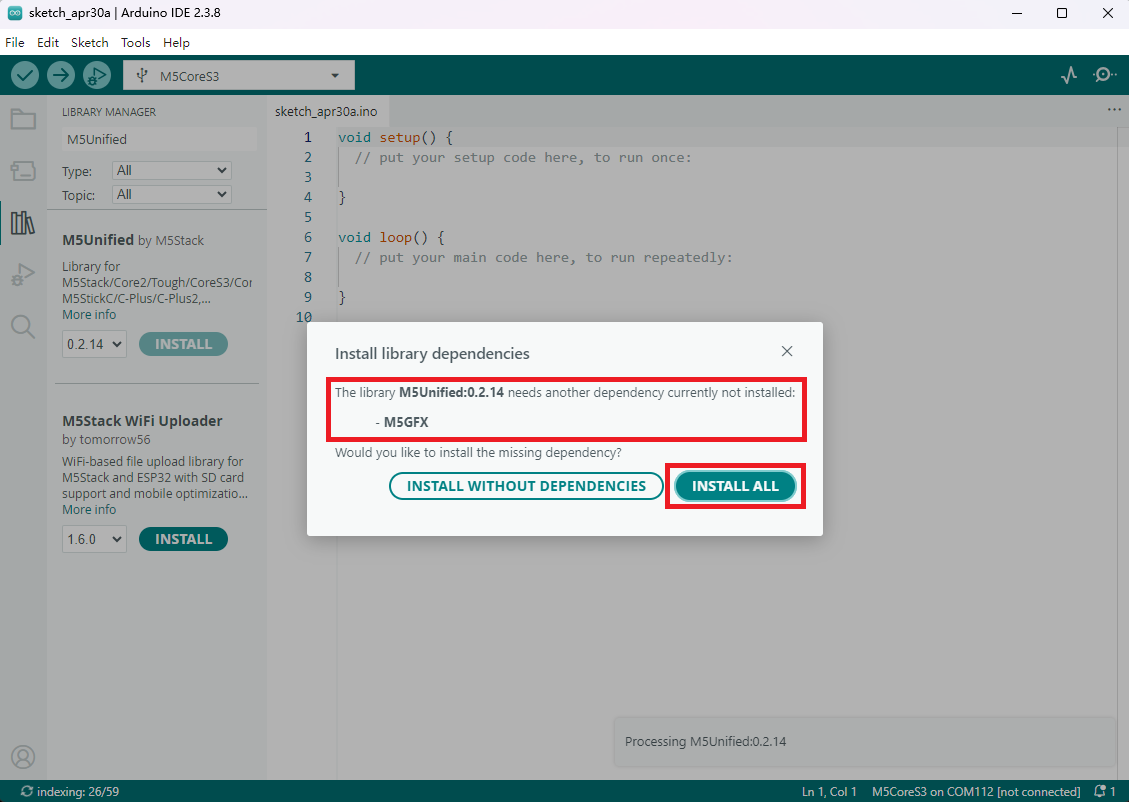
If Arduino IDE prompts you to install dependencies, choose Install All. This prevents missing-library errors when compiling examples.
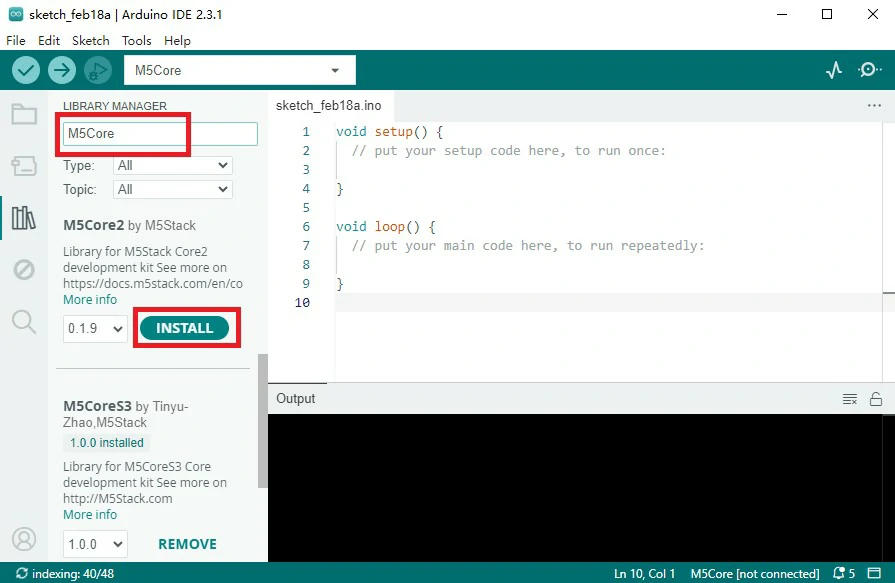
You can also search for device-specific or shared M5Stack libraries such as M5CoreS3, M5Unified, and M5GFX. The general library workflow is documented in M5Stack's Arduino Library Management tutorial.
6. Put M5CoreS3 into Download Mode
Connect M5CoreS3 to your computer with a USB-C data cable. Press and hold the reset button for about 2 seconds until the internal green LED turns on, then release it. The device is now in download mode and ready for upload.
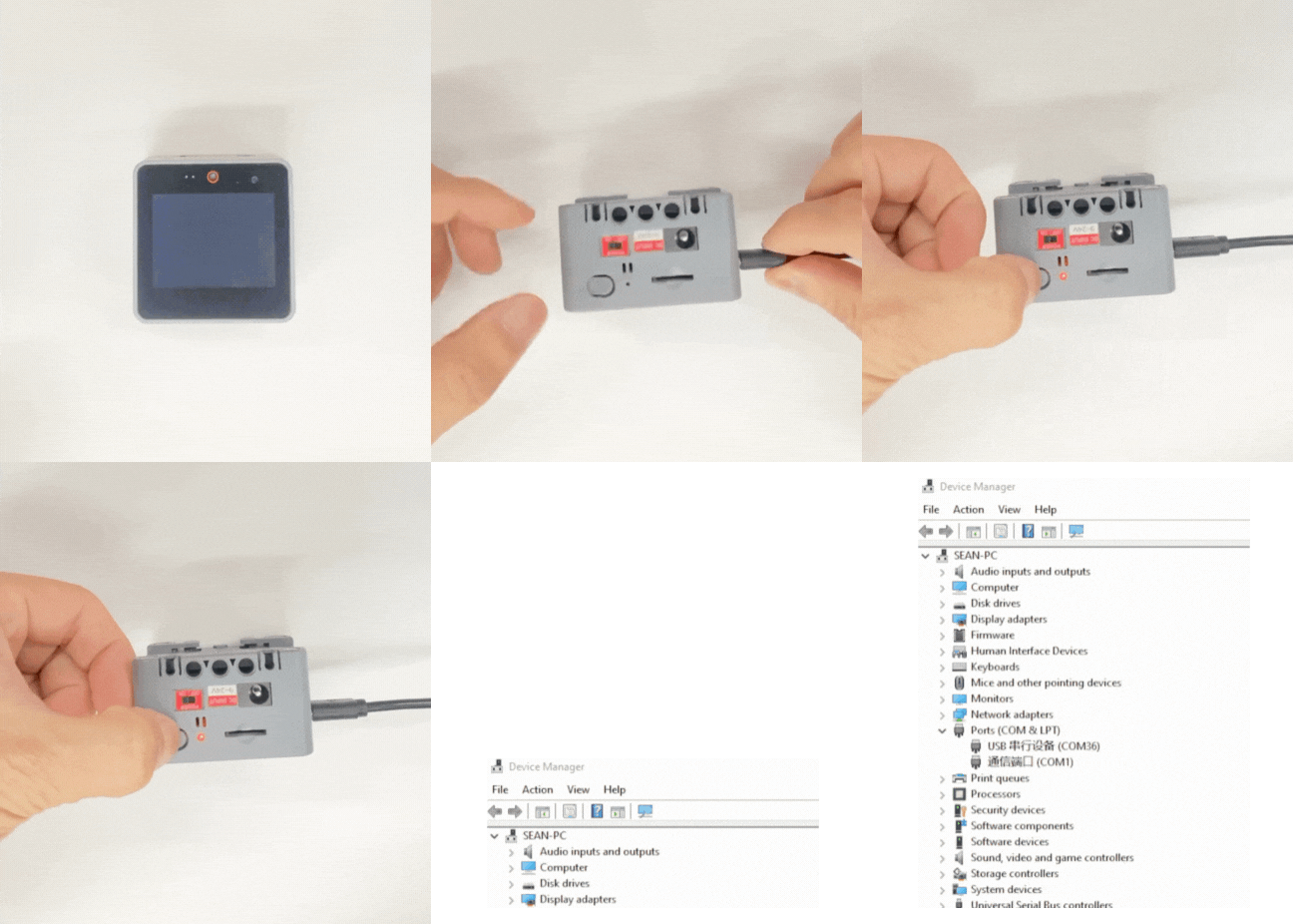
7. Select the Serial Port
After the device enters download mode, select the corresponding port in Arduino IDE. On Windows it is usually shown as COMx; on macOS and Linux it is usually shown as /dev/cu.* or /dev/tty*.
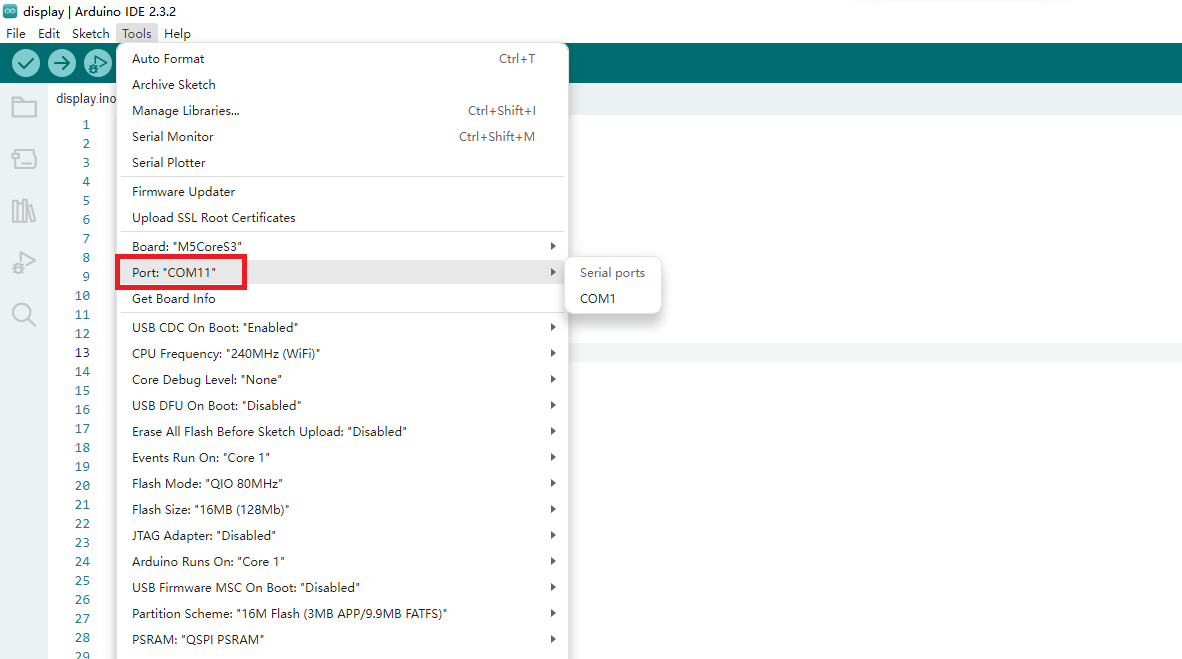
If no port appears, check the USB cable, confirm that the device is in download mode, and install the required USB serial driver if your operating system needs one. M5Stack provides common CH9102 and CP210x drivers on the M5Stack download page.
8. Open the BarGraph Example
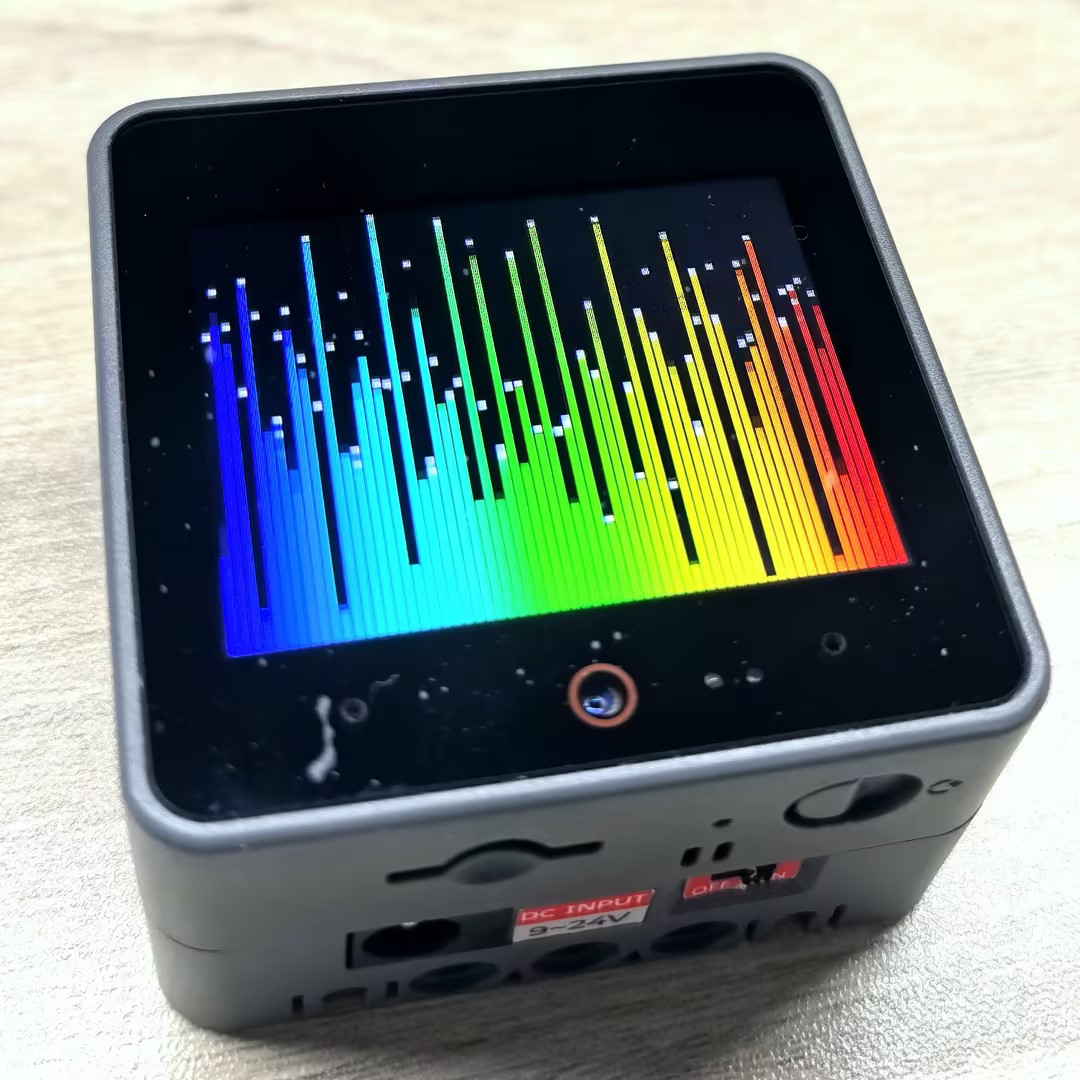
After installing the libraries and selecting the board, open File -> Examples and find the BarGraph example from the relevant M5Stack library. This example is a good first upload test because it draws a visible graph on the CoreS3 screen.
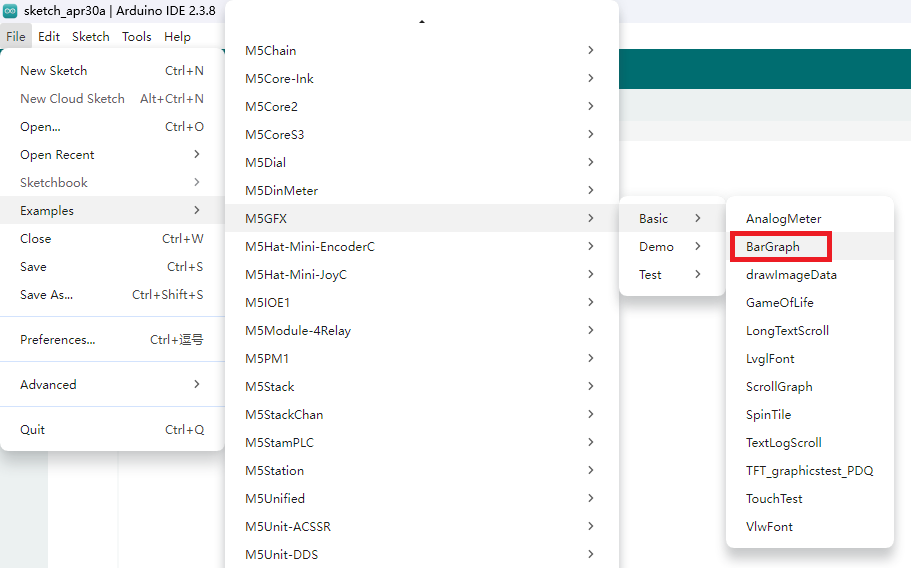
9. Compile and Upload
Confirm that both the board and port are selected, then click the upload button in Arduino IDE. The IDE will compile the sketch first and then upload it to M5CoreS3.
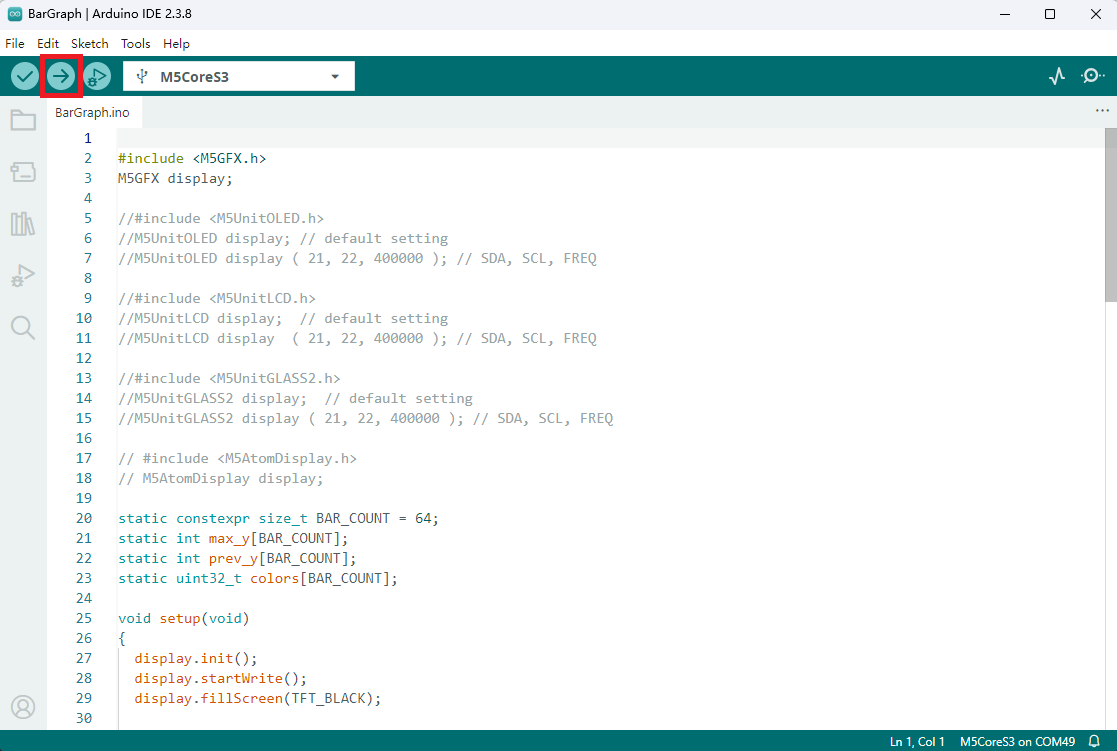
After upload completes, the M5CoreS3 screen should show the BarGraph example output.
Troubleshooting
If compilation fails, verify that M5Unified, M5GFX, and all prompted dependencies were installed. Reopen Library Manager if needed and reinstall missing dependencies.
If upload fails, put the device into download mode again and confirm that the selected port is correct. If it still fails, try a different USB data cable or USB port.
If M5Stack does not appear in Board Manager, confirm that the board package URL is entered correctly:
https://static-cdn.m5stack.com/resource/arduino/package_m5stack_index.jsonNext Steps
After the first upload works, continue with the CoreS3 Arduino API and examples, including Button, Camera, Display, Mic, RTC, SDcard, Speaker, Touch, IMU, Wakeup, and Power.
For real projects, use M5Unified for device initialization and shared hardware interfaces, then use M5GFX for display rendering.
References
- M5Stack Arduino IDE setup
- M5Stack Arduino Board Management
- M5Stack Arduino Library Management
- CoreS3 Arduino Program Compilation & Upload
- M5Unified GitHub repository
- M5GFX GitHub repository
- M5Stack download page: USB drivers
- Arduino Software download page
- OpenELAB product page: M5Stack CoreS3 ESP32S3


