
 openelab.de
 openelab.com





ESP32-CAM is a low-cost Wi-Fi camera module suitable for DIY monitoring, image capture, local live streaming, and Home Assistant projects. It can stream MJPEG video over a local network, capture still images, and work with PIR or Home Assistant automations for motion-triggered workflows. It is not a replacement for a commercial security camera, outdoor PoE camera, or professional NVR system.
This guide walks through the practical path: choosing the right ESP32-CAM camera module, flashing with ESP32-CAM-MB, starting a browser live stream, adding PIR-based motion detection, and bringing the stream into Home Assistant without exposing the camera directly to the public internet.

Third-party tutorial by Max Imagination.
What Is the ESP32-CAM Camera Module?
The ESP32-CAM Camera Module is a compact ESP32-based board with an OV2640 camera, Wi-Fi, Bluetooth, microSD/TF storage, and a small onboard white flash LED. The OpenELAB listing describes this version as using an ESP32-D0WD-V3 processor, 32Mbit flash, internal 512KB RAM plus external 4M PSRAM, 2.4GHz Wi-Fi, Bluetooth 4.2, a TF card slot, 5V power input, and the bundled ESP32-CAM-MB USB-to-serial adapter.
The important buying point is integration. A bare ESP32 board cannot see anything until you add a camera interface and pin mapping. An ESP32-CAM module already gives you the camera connector, OV2640 sensor, PSRAM, storage slot, wireless link, and a board form factor that is small enough to mount inside a 3D printer enclosure, electronics cabinet, pet-monitor box, or bench-testing fixture.
The trade-off is that the board is still a maker module. It has no weatherproof enclosure, no PoE, no commercial lens system, no automatic infrared night vision, and no hardened security software. Treat it as a flexible DIY ESP32 camera, not as a dedicated surveillance appliance.
| Component | Specification | Project Impact |
|---|---|---|
| Controller | ESP32-D0WD-V3 / ESP32-S class module | Runs Arduino CameraWebServer and Wi-Fi streaming firmware. |
| Camera | OV2640, 2MP class sensor | Good for snapshots, MJPEG, and basic visual monitoring. |
| Connectivity | 2.4GHz Wi-Fi, Bluetooth 4.2 | Use 2.4GHz Wi-Fi; it does not support 5GHz Wi-Fi. |
| Memory | Flash plus 4M PSRAM on the OpenELAB listing | PSRAM helps higher resolution and streaming buffers. |
| Storage | microSD / TF card slot | Useful for snapshots and experiments, not a full NVR replacement. |
| Programming | ESP32-CAM-MB or USB-to-serial adapter | MB adapter avoids messy FTDI jumper wiring. |
| Typical uses | Monitoring, image upload, QR recognition, IoT camera projects | Best for local DIY visibility, not public-facing security. |
What You Need for an ESP32-CAM Security Camera Project
For a clean first build, start with the ESP32-CAM module and its programming adapter rather than a pile of loose jumper wires. The practical hardware list is short:
- ESP32-CAM with OV2640 camera, preferably with PSRAM and ESP32-CAM-MB adapter.
- Stable 5V power supply and a real USB data cable.
- 2.4GHz Wi-Fi network with enough signal near the camera location.
- Arduino IDE with current Espressif ESP32 board support.
- Optional HC-SR501 PIR motion sensor for simple motion-triggered events.
- Optional microSD card for snapshot experiments.
- Home Assistant server if you want a dashboard camera and automation layer.
This guide references the OpenELAB ESP32-CAM Camera Module, the current Espressif CameraWebServer example, and the Home Assistant MJPEG IP Camera integration as reviewed on August 7, 2026. Replace the network values and IP addresses with your own local setup.

ESP32-CAM vs ESP32-CAM-MB: Camera Board and Programmer Are Not the Same
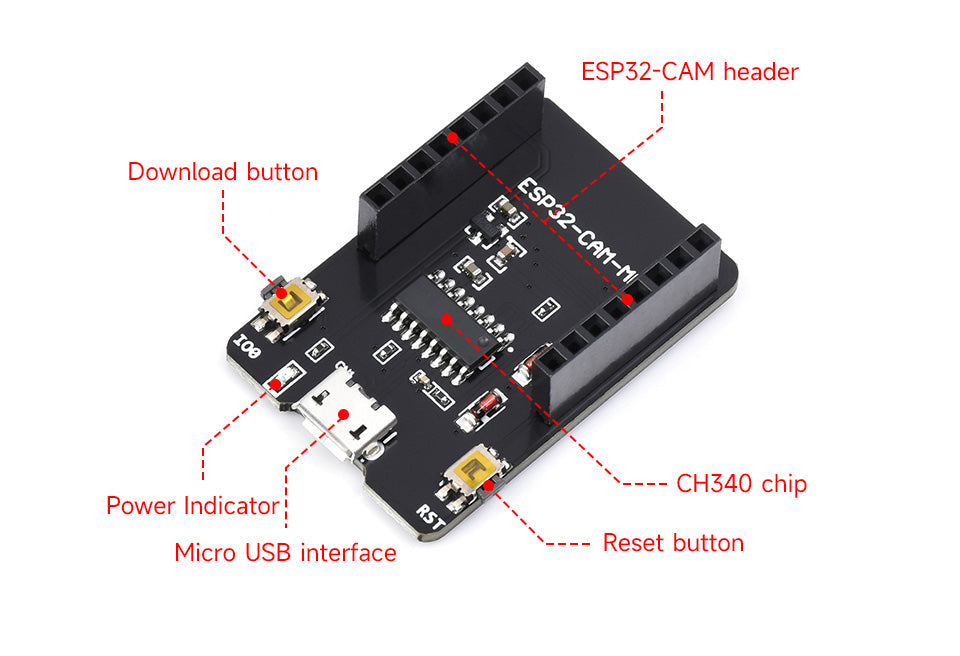
ESP32-CAM is the camera board. ESP32-CAM-MB is the USB programming baseboard. That distinction matters because many beginners search for an ESP32-CAM-MB datasheet thinking it is a separate camera model. It is not. The MB adapter is mainly there to make USB flashing easier through a CH340-style USB-to-serial bridge and a Micro USB connector.
Without ESP32-CAM-MB, you can program an ESP32-CAM using an FTDI adapter, but you must manually wire 5V, GND, U0R, U0T, and boot-mode pins. GPIO0 must be pulled low during flashing and released for normal boot. That works, but it is exactly the kind of small wiring mistake that turns a beginner project into an hour of upload errors.
With the MB adapter, flashing is more repeatable. Seat the module carefully, plug in USB, select the correct board and port, upload the sketch, then reboot into normal run mode. If you plan to reflash often while tuning CameraWebServer, the adapter is worth it.
How to Program ESP32-CAM with Arduino IDE
The simplest first firmware path is the official Espressif Arduino CameraWebServer example. It gives you a browser control page, still capture, and MJPEG streaming without writing a web server from scratch. Use the official Espressif CameraWebServer example as the source of truth rather than copying a stale random blog sketch.
- Install Arduino IDE.
- Install current Espressif ESP32 board support through Boards Manager.
- Plug the ESP32-CAM into the ESP32-CAM-MB adapter and connect USB.
- Select an ESP32 camera-capable board target. For common AI Thinker-style modules, use the AI Thinker ESP32-CAM target or matching board profile.
- Open File > Examples > ESP32 > Camera > CameraWebServer.
- Select the correct camera model in
board_config.hor the current example's board configuration file. - Enter your 2.4GHz Wi-Fi SSID and password locally. Do not put real credentials in public screenshots.
- Compile and upload.
- Open Serial Monitor at 115200 baud.
- Copy the printed local IP address and open it from a browser on the same LAN.
// CameraWebServer: keep secrets out of screenshots and public examples.
// Replace these placeholders in your local Arduino IDE only.
const char *ssid = "YOUR_2_4GHZ_WIFI_SSID";
const char *password = "YOUR_WIFI_PASSWORD";

// In the current Espressif Arduino CameraWebServer example,
// select the camera model in board_config.h.
// For the common AI Thinker-style ESP32-CAM module:
// #define CAMERA_MODEL_AI_THINKER
If upload fails, focus on three things first: correct port, correct boot mode, and stable power. If the camera boots but initialization fails, check the camera model and pin mapping before changing random code.
How to Start ESP32-CAM Live Streaming
After the sketch boots, Serial Monitor prints a local URL such as http://192.168.1.42. Open that address in a browser on the same network. The CameraWebServer page provides settings for resolution, JPEG quality, brightness, and stream start/stop controls. For live monitoring, QVGA or VGA is often more usable than chasing the maximum sensor resolution.
According to Espressif's ESP32 camera driver documentation, PSRAM is important for higher resolutions, JPEG is the better format for Wi-Fi streaming, and multiple frame buffers can improve frame rate while increasing CPU and memory pressure. In practical terms: higher resolution does not automatically mean a better security camera. A stable VGA stream is usually more useful than an unstable high-resolution page that freezes every minute.
Browser control page: http://ESP32_CAM_IP/
Still image URL:     http://ESP32_CAM_IP/capture
MJPEG stream URL:    http://ESP32_CAM_IP:81/stream

# Tip: reserve ESP32_CAM_IP in your router's DHCP settings
# before adding the camera to Home Assistant.
Reserve the ESP32-CAM IP address in your router before adding it to Home Assistant. Otherwise the camera may work today and disappear after your DHCP lease changes.

How to Add ESP32-CAM Motion Detection
Do not treat motion detection as something the basic ESP32-CAM magically includes. The default CameraWebServer example is mainly a camera web server. For a real project, choose one of three motion strategies:
| Motion Method | Pros | Cons | Recommendation |
|---|---|---|---|
| PIR sensor trigger | Stable, low power, easy to understand | Cannot identify objects, only motion/heat change | Best beginner path |
| Image frame difference | No extra hardware | CPU load, false triggers from lighting changes | Good for experiments |
| Home Assistant sensor trigger | Excellent automation logic | Requires existing sensors and HA setup | Best for real smart-home systems |
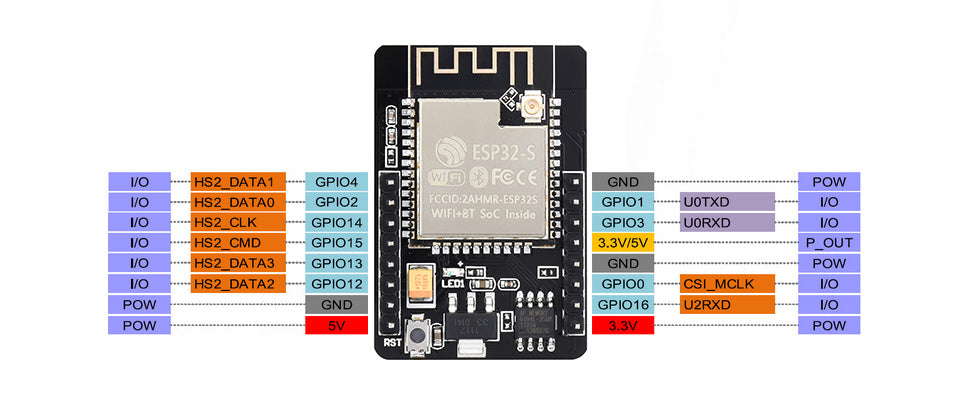
The most reliable beginner route is a PIR sensor such as the HC-SR501 PIR Motion Sensor. Wire VCC to a compatible supply, GND to ground, and OUT to a free ESP32-CAM GPIO that does not conflict with camera pins, flash LED, SD card, boot strapping, or your exact board revision. Add a cooldown so one person walking past the camera does not create 100 triggers.

GPIO13 warning: This GPIO13 example assumes that the microSD interface is disabled or not using four-bit SD mode. If you use a microSD card, select a pin based on your exact board configuration. This is a logic snippet, not a complete replacement for the CameraWebServer sketch.
// Simple PIR input pattern for ESP32-CAM projects.
// Pick a free GPIO that does not conflict with camera, flash, SD card,
// boot strapping, or your exact board revision.

const int PIR_PIN = 13;
unsigned long lastMotionMs = 0;
const unsigned long cooldownMs = 30000;

void setup() {
  Serial.begin(115200);
  pinMode(PIR_PIN, INPUT);
}

void loop() {
  bool motion = digitalRead(PIR_PIN) == HIGH;
  if (motion && millis() - lastMotionMs > cooldownMs) {
    lastMotionMs = millis();
    Serial.println("Motion detected: trigger snapshot, log event, or notify Home Assistant");
  }
}
This snippet only shows the trigger pattern. In a finished project, the trigger can request a snapshot, publish MQTT, log an event, wake a device, or let Home Assistant decide what notification to send. Keep motion logic modest on the ESP32-CAM; let Home Assistant handle richer automations.
Connect ESP32-CAM to Home Assistant
The cleanest main path is Arduino CameraWebServer plus Home Assistant MJPEG IP Camera. The official Home Assistant MJPEG IP Camera documentation says the integration needs at least a video streaming URL, and it can also use a still image URL. With CameraWebServer, the usual local endpoints are the browser page at port 80, still capture at /capture, and MJPEG stream at port 81.
- Confirm your browser can open the ESP32-CAM page from the same network as Home Assistant.
- Confirm the still image URL, usually
http://ESP32_CAM_IP/capture. - Confirm the stream URL, usually
http://ESP32_CAM_IP:81/stream. - In Home Assistant, go to Settings > Devices & services.
- Add MJPEG IP Camera and enter the stream and still image URLs.
- Add the camera entity to a dashboard card.
- Use a PIR sensor, door sensor, or Home Assistant automation to trigger snapshots or notifications.
Home Assistant's current MJPEG IP Camera documentation emphasizes the UI integration path. Do not expose the ESP32-CAM directly to the internet. Use VPN, Home Assistant remote access, or another authenticated tunnel if you need remote viewing.
ESPHome alternative: ESPHome can also integrate camera-capable ESP32 boards with Home Assistant, but this article keeps the main tutorial on Arduino CameraWebServer. If you need ESPHome ESP32-CAM YAML, treat it as a separate firmware path and test it against your exact board and pinout.
Can ESP32-CAM Work as a Real Security Camera?
ESP32-CAM can be useful as a DIY security-style camera, but expectations matter. It is a good fit for indoor bench monitoring, 3D printer observation, pet checks, equipment status, classroom demos, and Home Assistant dashboards where occasional local video is enough. It is not a good fit as the only camera protecting a door, business, alarm system, or safety-critical area.
Do not direct-port-forward the camera to the public internet. The typical maker firmware is not a hardened internet-facing camera platform. Standard ESP32-CAM modules also are not waterproof, the onboard white LED is not true infrared night vision, and continuous recording is better handled by Home Assistant, a server, or an NVR-like service. The board is excellent for learning and local visibility; it is not a commercial security appliance.
Troubleshooting ESP32-CAM Setup, Stream and Home Assistant
| Problem | Likely Cause | Fix |
|---|---|---|
| Camera init failed | Wrong camera model or pin configuration | Check AI Thinker or exact board model selection and camera ribbon seating. |
| Brownout detector was triggered | Insufficient or unstable power | Use stable 5V power, a better USB cable, and avoid weak breadboard rails. |
| Upload failed | Board not in download mode or wrong serial port | Use ESP32-CAM-MB correctly or check GPIO0 boot-mode wiring with FTDI. |
| Black image | Ribbon cable, power, resolution, or sensor configuration issue | Reseat the OV2640 cable and start with a lower resolution. |
| Stream freezes | Resolution too high or Wi-Fi signal too weak | Use QVGA/VGA, reduce JPEG quality load, and improve Wi-Fi placement. |
| Home Assistant cannot connect | Wrong URL, blocked network path, or changed IP | Test the URL from the HA network and reserve the ESP32-CAM IP address. |
| Image is reversed | Camera mounted upside down or mirrored | Adjust vertical flip or horizontal mirror settings in the web UI or firmware. |
| Poor night image | No true IR night vision | Add suitable lighting, IR-capable hardware, or a different low-light camera. |
Buying Recommendation
Choose the ESP32-CAM Camera Module with ESP32-CAM-MB adapter if your goal is a low-cost local camera project, Arduino IDE learning, Home Assistant MJPEG display, or PIR-triggered snapshot experiment. Choose a commercial IP camera or PoE camera if you need outdoor reliability, secure remote access, night vision, multi-user streaming, ONVIF/NVR support, or guaranteed recording.
For broader platform decisions, our ESP32 vs Arduino vs Raspberry Pi Pico comparison helps explain why ESP32 boards are attractive for Wi-Fi IoT projects, while our Home Assistant ecosystem guide explains how local automations fit together.
Official Resources
- Espressif Arduino CameraWebServer example
- Espressif ESP32 Camera Driver
- Home Assistant MJPEG IP Camera integration
Frequently Asked Questions
What is an ESP32-CAM used for?
An ESP32-CAM is used for low-cost Wi-Fi image capture, local MJPEG streaming, snapshots, QR recognition experiments, simple monitoring projects, and Home Assistant camera dashboards. It is best treated as a DIY IoT camera module, not as a finished surveillance product.
What is the difference between ESP32-CAM and ESP32-CAM-MB?
ESP32-CAM is the camera module. ESP32-CAM-MB is the USB programming adapter that makes flashing easier through Micro USB and a USB-to-serial chip. Without the MB adapter, you can still program the board with an FTDI adapter, but wiring and boot-mode handling are more error-prone.
Can ESP32-CAM stream live video?
Yes. The common Arduino CameraWebServer example can serve a browser control page and an MJPEG stream over the local network. Smoothness depends on resolution, JPEG quality, PSRAM, power supply, Wi-Fi signal, and how many clients are watching.
Can ESP32-CAM connect to Home Assistant?
Yes. The straightforward path is Arduino CameraWebServer plus the Home Assistant MJPEG IP Camera integration. Use the stream URL and still image URL from your ESP32-CAM firmware, then add the camera entity to a dashboard.
Does ESP32-CAM support motion detection?
The basic ESP32-CAM board does not magically provide a finished security-grade motion detector. Use a PIR sensor, simple frame-difference logic, or Home Assistant automations. For beginners, a PIR sensor is the most reliable and lowest-power trigger.
Does ESP32-CAM have night vision?
A standard ESP32-CAM with OV2640 and a white flash LED does not provide true infrared night vision. For night monitoring, use proper illumination, an IR-capable camera variant, external IR lighting, or a different camera module designed for low-light use.
Can ESP32-CAM record video to a microSD card?
Many ESP32-CAM boards include a microSD slot, but continuous reliable video recording is much harder than saving snapshots. For security-style recording, let Home Assistant, a server, or an NVR-like service handle the recording instead of relying on the module alone.
Why does ESP32-CAM show a brownout error?
Brownout usually means the module is not getting stable current during Wi-Fi or camera operation. Use a stable 5V supply, a good USB cable, short power wiring, and avoid powering the camera from weak USB adapters or fragile breadboard rails.
What power supply does ESP32-CAM need?
Use a stable 5V supply with enough current headroom. The OpenELAB ESP32-CAM listing specifies 5V input and lists current rising when the flash LED is on. In practice, unstable power is one of the most common causes of boot loops and camera init failures.
Can I access ESP32-CAM remotely?
Do not port-forward an ESP32-CAM directly to the public internet. For remote viewing, use a VPN, Home Assistant remote access, a reverse proxy designed for authentication, or another secure tunnel. Treat the camera feed as private local-network data.
Final Takeaway
The best ESP32-CAM security camera project is honest about what the board is good at. Use it for low-cost local streaming, snapshots, PIR-triggered events, Home Assistant dashboards, and camera learning. Keep credentials private, use stable 5V power, avoid exposing the camera to the public internet, and let Home Assistant or a server handle serious notification and recording workflows.


